TACTICAL INBOUND ALERT: SYSTEM IS OPERATIONAL
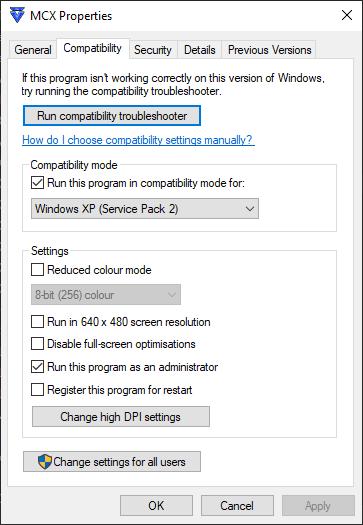
Right-click the executable, select Properties, and navigate to the Compatibility tab:

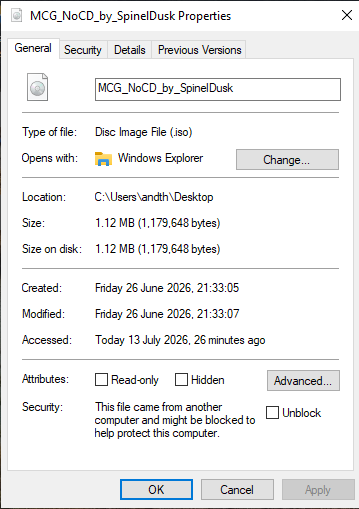
Step 1: Download the No-CD ISO
Click here to download the No-CD ISO!Step 2: Enable Legacy DirectPlay
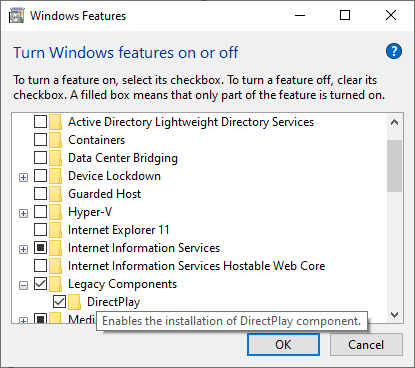
Ensure Windows has DirectPlay turned on so the legacy files can launch properly:- Open the Windows Start Menu, type "Turn Windows features on or off", and press Enter.
- Scroll down to Legacy Components.
- Check the box for DirectPlay and click OK.
Step 3: Adjust Compatibility Settings
Before launching the game, navigate to your game folder and locate your MechCommander executable (.exe) file.Right-click the executable, select Properties, and navigate to the Compatibility tab:
- Check "Run this program in compatibility mode for:" and select Windows XP (Service Pack 2) or Windows 98 / Windows ME.
- Check "Disable full-screen optimizations".
- (Optional) Check "Reduced color mode" (16-bit) if you encounter severe color distortion.
How to Play Online With Us
After you have completed the steps above, you are ready to jump into multiplayer!- Go to https://www.gameranger.com and create a free account.
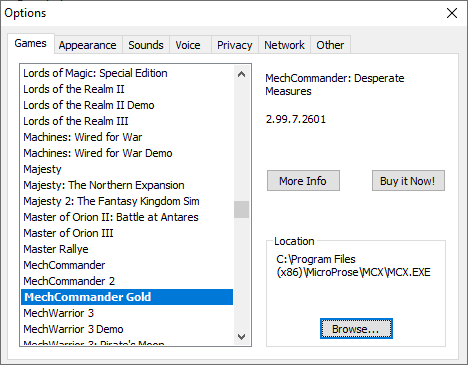
- Download and open GameRanger, go to options, and path the game executable so it can detect your client.
- Look for our rooms to join us commander!
Attachments

Last edited: